What to Look for in a Document Scanner, and Why We Recommend Kodak Alaris
Paper handling, image quality, range and software: what matters in a scanner and why we recommend KODAK.
Read the guideScanning turns paper into files. Where those files go next decides whether anyone can find them, trust them and keep them for the right length of time. Document management, enterprise content management (ECM), records management, workflow and SharePoint overlap, and the terms are often used loosely. This guide explains what each one does, so you can choose before you scan.
Key points
This guide covers the main ways to store and manage scanned documents and records, how they differ, where SharePoint fits, and how documents and their index data get in. It is general information, not legal advice, so check the records obligations that apply to your sector and jurisdiction.
There is no single right answer, because documents serve different purposes. A signed contract, a patient file, an invoice waiting for approval and a working draft need different controls. This table is a quick guide, and each option is explained below.
| Option | What it does | Best for | Watch out for |
|---|---|---|---|
| File shares and cloud storage | Folders of files with basic permissions | Small volumes and working files | No version control, retention or audit trail, and hard to search by index data |
| Document management | Libraries with metadata, search, versions and permissions | Everyday documents that people share and update | Does not by itself prove that a document is an authentic, unaltered record |
| Records management (EDRMS) | Classification, retention, disposal, holds and an audit trail | Records with legal, regulatory or archival requirements | Needs a file plan and discipline, and can feel heavy for everyday files |
| ECM | One platform for capture, document management, workflow, records and integration | Larger organisations with many content types and processes | Scope, licensing and governance effort |
| Workflow and case management | Routes documents, tasks and approvals to the right people | Claims, applications, invoices and requests | Needs a records store behind it for the finished documents |
| Line-of-business systems | Attach documents to a customer, patient, asset or transaction | Documents tied closely to one system | Documents can be locked inside, so plan how to export and retain them |
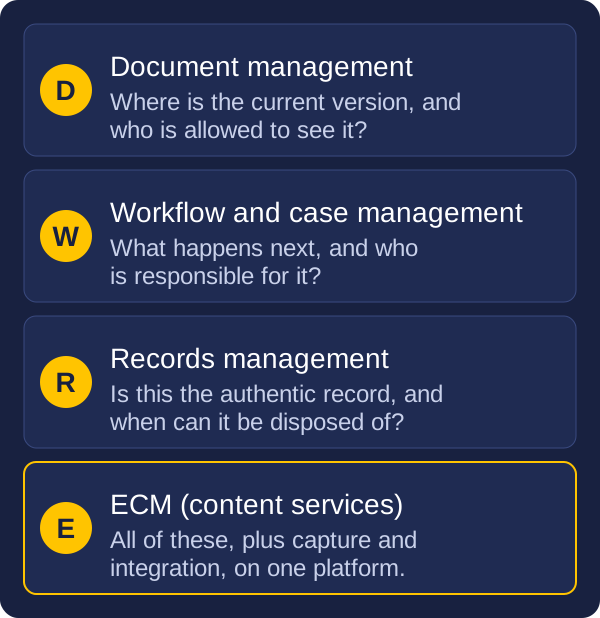
Document management is about working with documents. It helps people find the right file, see the current version, share it safely and control who can change it. Typical features are libraries or folders, metadata, search, version history and permissions.
Records management is about evidence. A record is information kept to show what was decided or done, such as a contract, a claim, a clinical note or a signed approval. A records system keeps the record authentic and complete, stops it being changed without a trace, applies a retention schedule, and shows who disposed of what, and when.
Records management typically adds:
The two overlap. A document is often drafted in a document management system, then becomes a record when it is finalised or approved. In Australia, a system that combines both is often called an EDRMS, short for electronic document and records management system. Whether a scanned copy can replace the paper original is a records question, covered in our guide to keeping records compliant.
Enterprise content management (ECM), now often called content services, is a platform or a set of connected tools for capturing, storing, managing, processing and preserving content across an organisation. Where document management and records management each solve one problem, ECM aims to solve them together, for many kinds of content, in one governed place.
An ECM platform typically adds:
The benefits are consistency and control. The costs are scope, licensing and the effort to agree a metadata model and governance. ECM suits organisations with many content types, several departments and regulatory obligations. It is rarely the right first step for a team that only needs to stop losing files.
Storage answers where a document is. Workflow answers what happens next. A workflow routes a document and its data to the right people, collects approvals, sets deadlines and records what was done. Common examples are invoice approval, application assessment, claim handling, contract review and customer requests.
Case management goes a step further. It gathers the documents, tasks, notes and decisions for one client, patient, claim or matter into a single case, so the whole story can be seen in one place.
Both depend on good index data. When a capture system reads the supplier name, invoice number and amount from a scanned invoice, that data can start an approval workflow without anyone retyping it. When the work is finished, the completed documents should pass to a records store, so retention rules still apply. Our guide to what happens after the scan covers how captured documents feed these processes, and our guide to RPA and AI agents explains where automation fits.
Microsoft SharePoint is the document store many organisations already have, which makes it a natural destination for scanned documents. Used well, it provides document libraries with metadata columns, content types, version history, permissions and search, with links to Microsoft 365 and Teams.
For retention and records, SharePoint works with Microsoft Purview. Retention labels can keep or delete content at item level, and they can also mark an item as a record. A default label can be applied to everything in a library, folder or document set, and labelling actions are written to an audit log. Which features you can use depends on your Microsoft 365 plan and configuration.
SharePoint needs planning to work well as a document and records store. Decide:
SharePoint can be enough for many organisations. Where recordkeeping requirements are strict, classification schemes are complex, or disposal needs formal approval and certification, some organisations add a dedicated records management system alongside it. Check your own obligations, and test with a small batch of real documents before you commit.
Between the scanner and the store sits capture software. It batches pages, separates documents, runs OCR, reads barcodes and cover sheets, extracts index data, lets a person check anything uncertain, and then exports the result. Two examples from Kodak Alaris are Kodak Capture Pro Software, which runs on a scanning workstation, and Kodak Info Input Solution, a web-based capture platform that supports scanning from remote locations. Our guide to why we recommend Kodak Alaris scanners explains how Capture Pro works with their scanners.
How the result reaches the destination matters as much as the scan. There are two broad approaches.
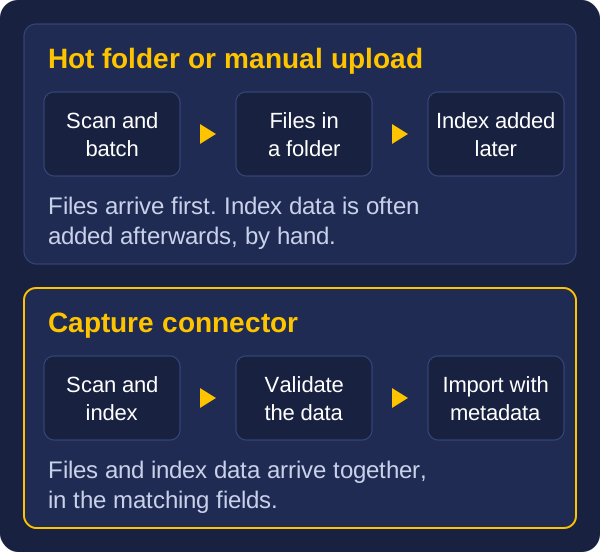
A connector keeps the index data attached to the file and lets validation happen before the import. It can also deliver the data to a queue for automation tools such as RPA, so a process starts as soon as a document arrives.
If the capture software has no ready-made connector for your system, there are other routes: exporting files with an index file that an import routine reads, or connecting through an API. We can look at what a connector would involve for a particular system and requirement.
Start with what the documents need to do, not with the product. These questions help:
Test your answers on a pilot of a few hundred real documents before you scan the backlog. A pilot shows quickly whether the index fields can be filled, whether the connector or import works, and whether people can find what they need.
Vision and Beyond has worked with scanning, document capture and records for over 30 years. We supply scanners and capture software from Kodak Alaris, organise outsourced scanning, and help organisations connect captured documents to the systems they use. We analyse your systems and work out how to move data between them, instead of retyping it. Where there is no ready-made connector, we can look at what building one would involve, depending on the system and what you need.
To see how scanning fits in, read our guide to document scanning services.
Document management helps people find, share and update documents. Records management keeps evidence: it protects records from change, applies retention and disposal rules, and keeps an audit trail. Many systems and organisations combine the two.
Enterprise content management (ECM) is a platform, or a set of connected tools, that captures, stores, manages, processes and preserves content across an organisation. It usually combines document management, workflow and records management.
An EDRMS is an electronic document and records management system. The term is common in Australia for a system that combines document management with records management, particularly in government.
SharePoint is a document management platform that can also apply retention and records controls through Microsoft Purview retention labels, depending on your Microsoft 365 plan and configuration. Whether that meets your obligations depends on your requirements, so check them and test before you rely on it.
Not necessarily. Many organisations manage well with SharePoint, planned properly. A larger platform or a dedicated records system makes sense when requirements are strict, content comes from many systems, or classification and disposal need formal control.
A capture connector is software that sends scanned files and their index data from the capture software straight into the fields of another system, such as SharePoint or an ECM platform, without anyone retyping the details.
Yes, where the capture software or an integration fills SharePoint columns from the index data. Plan the columns first, then map each index field to a column.
Start with four questions: what documents you have, which of them are records with legal or regulatory requirements, where they need to end up, and what index data each type needs. Decide the destination and the index fields before you scan, and test with a small batch first.
If you would like to talk it through, send us a message with what you have, where it needs to go and the problem you want to solve, and we will come back to you with how we would approach it.
These guides may also help:
Tell us what you have, roughly how much, and what you need to do with the files. We will come back to you with how we would approach it.