Vision & BeyondSince 1996

Scanner Care: Cleaning and Consumables for Better Scans

In this article
  1. Why does scanner care matter?
  2. What parts of a scanner need cleaning or replacing?
  3. How do I clean a document scanner?
  4. When should scanner rollers be replaced?
  5. How do I know my scanner needs attention?
  6. Doing it safely
  7. How Vision and Beyond helps
  8. Common pitfalls
  9. Frequently asked questions
  10. Where to start

Scanner care is not exciting, but it decides how clean your images are, how smoothly paper feeds and how long the scanner lasts. A scanner that is cleaned on time and has its worn parts replaced keeps producing good scans for years. One that is ignored slowly starts to streak, feed pages together and jam.

Key points
  • Clean imaging areas and worn feed parts cause most streaks, double-feeds and jams.
  • Run a transport cleaning sheet, clean the imaging guides and check rollers when the maintenance icon appears.
  • Replace feed and separation parts when they are very worn or cleaning no longer fixes feeding problems, and keep a spare kit.
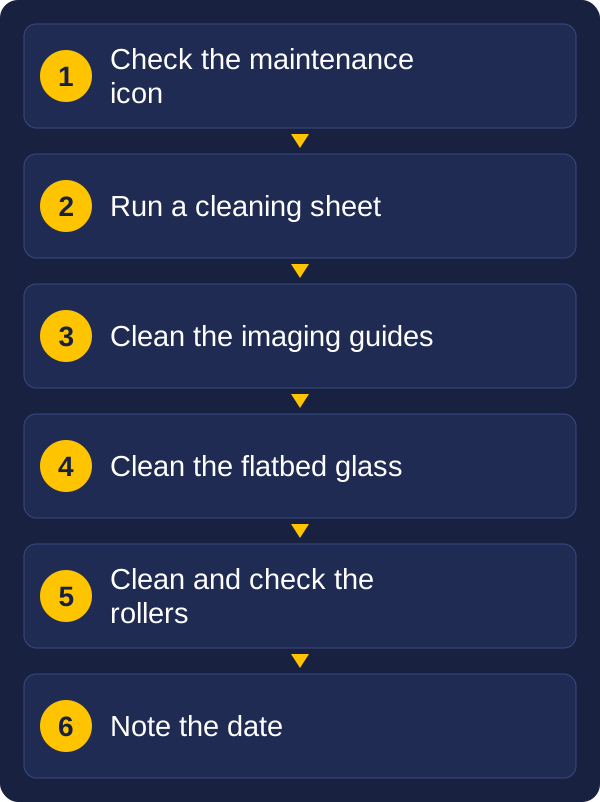
Diagram of a scanner cleaning routine: check the maintenance icon, run a cleaning sheet, clean the imaging guides, clean the flatbed glass, clean and check the rollers, and note the date.
A simple scanner cleaning routine

This guide explains what gets dirty, what wears out, how to tell when it is time to act, and how Vision and Beyond helps keep your scanners supplied and running. It is written for KODAK scanners, so check your model's user guide for the exact steps.

Why does scanner care matter?

Three things depend on it, and they affect every page you scan.

  • Image quality. Dust, paper fibre and residue on the imaging area leave lines and marks on every page. They also make text harder for OCR to read, which means more checking by a person.
  • Paper handling. Dirty or worn feed and separation parts let pages slip, skew or feed together. Multi-feed detection will stop the scanner when that happens, but healthy parts mean it stops far less often.
  • Longevity. The parts that wear out are small and designed to be replaced. Changing them on time protects the rest of the scanner and keeps it working well within its range.

Our guide on why we recommend Kodak Alaris scanners covers the paper handling features. Looking after the scanner is what keeps those features working as designed.

What parts of a scanner need cleaning or replacing?

Some parts only need cleaning. Others are consumables that wear with use and are replaced.

  • Transport, rollers and background strips. The paper path takes the dust and fibre from every page. Kodak's guides clean these by running a transport cleaning sheet through the scanner.
  • Imaging guides. These sit in the scanning area. Marks here show up in the image, so they are cleaned after the cleaning sheet has been run.
  • Flatbed glass. On models with a flatbed, such as the S3060f and S3100f, the glass needs cleaning too.
  • Feed roller or feed module. This pulls each page into the scanner, and it wears with use.
  • Separation roller and pre-separation pad. These keep pages from feeding together. Kodak describes them as consumable parts on the S3000 and S5000 series.
  • Front transport roller. The S3000 and S5000 reference guides list this as a replaceable part too.

The E series guide covers the same ground: cleaning the feed rollers, cleaning and replacing the separation roller, and cleaning the imaging area.

How do I clean a document scanner?

Kodak's S3000 and S5000 scanners keep track of this for you. When a maintenance meter expires, an icon appears at the top of the touchscreen to say it is time to clean the scanner or replace consumables. The scanner's own reminder and your model's user guide are the best guide to timing.

A routine for each clean looks like this:

  1. Check the maintenance icon. If it is showing, a meter has expired and the scanner needs attention.
  2. Run a transport cleaning sheet. This cleans the transport, rollers and background strips.
  3. Clean the imaging guides. Do this after the cleaning sheet, following your user guide.
  4. Clean the flatbed glass if your model has one.
  5. Clean the feed and separation rollers, and check them for wear.
  6. Note the date. A short log shows when each scanner was last cleaned and helps you spot a scanner that needs attention more often than the others.

As a habit, we suggest also cleaning busy scanners on a regular day, such as weekly, so that cleaning does not wait for the reminder.

When should scanner rollers be replaced?

Kodak supplies the wearing parts as consumable kits. The E1030 flyer lists a Feed Roller Kit, and the N2000, S3000 and S5000 flyers list Feeder Consumable Kits. The kits cover the feed and separation parts described above, and the N2000 and S3000 flyers also list Carrier Sleeves (5 Pack) for delicate or irregular originals.

Kodak's feed roller kit instructions give the rule of thumb: replace parts when they are very worn, or when cleaning does not correct page separation or feeding issues. They also say that paper type, cleaning habits and other details of use can change the schedule. The right timing depends on your paper and how you scan.

A useful way to plan:

  • Keep a spare kit on hand for each model, so a worn part does not stop the work.
  • Replace when cleaning stops helping, rather than waiting for a failure.
  • Expect different schedules. Paper type and cleaning habits change how long parts last, so scanners in different offices will not wear at the same rate.

How do I know my scanner needs attention?

The scans themselves tell you when something is wrong. This table shows the likely cause and a first step for each sign.

What you seeLikely causeFirst step
The same line or mark in the same place on every pageDirt on the imaging guides or flatbed glassClean the imaging guides, and the glass if you use it
Dust or marks carried from page to pageA dirty paper pathRun a transport cleaning sheet
Pages feed together, or multi-feed stops happen more than they used toDirty or worn separation partsClean the rollers, then replace the separation roller or pad if worn
Pages slip, skew or are pulled in unevenlyA dirty or worn feed rollerClean it, then replace the feed parts if feeding does not improve
The maintenance icon shows on the touchscreenA maintenance meter has expiredFollow the screen: clean, or replace consumables

If cleaning does not fix a problem, replace the part before the problem spreads to the rest of the batch.

Doing it safely

The exact steps differ by model, so follow the user guide for your scanner. Kodak's feed roller kit instructions include a few points worth passing on:

  • Disconnect the power before replacing any part.
  • Take care with the sensors. When removing the feed roller cover, avoid damaging the paper present sensor.
  • Do not overstretch the urging roller tire. It can tear if stretched more than necessary.
  • Wash your hands with soap and water after replacing parts.

Use the cleaning sheets and supplies Kodak lists for your model, and follow the cleaning steps for your model in order. If you are not sure which supply suits your scanner, ask us before trying something else.

How Vision and Beyond helps

Vision and Beyond is an authorised reseller of Kodak Alaris, and our involvement does not stop when the scanner is installed.

  • Supplies. We can help you source the consumable kits and cleaning supplies for your KODAK scanners, matched to your model.
  • A care routine. We help set up a simple routine for your team, including who cleans, how often and what is logged.
  • Spare kits. We can recommend what to keep on hand for each model, based on how much you scan.
  • Support plans. Kodak offers service plans that go beyond the original warranty. We can explain the options and help you choose.
  • One contact. If a scanner starts to streak or misfeed, you can ask us first, before it affects a batch.

Common pitfalls

  • Waiting for a failure. Cleaning and replacing on the reminder is cheaper than a batch of damaged or missing pages.
  • Ignoring the maintenance icon. It appears because a meter has expired.
  • Cleaning without replacing. If cleaning no longer fixes feeding or separation, the part is worn.
  • Replacing without cleaning. New rollers on a dirty paper path wear faster.
  • No spare kit. A worn part with no replacement on the shelf can stop the work for days.
  • Using whatever is to hand. Use the supplies Kodak lists for your model.
  • Blaming the software. Lines on every page usually point to the scanner, not the capture software.

Frequently asked questions

Why does my scanner leave lines on every page?

A line in the same place on every page usually points to dirt on the imaging guides or flatbed glass. Clean them following your model's user guide.

How often should I clean a document scanner?

KODAK S3000 and S5000 scanners show a maintenance icon on the touchscreen when a meter has expired. Clean when it appears, and consider a regular clean for busy scanners.

When should I replace scanner rollers?

Kodak advises replacing parts when they are very worn, or when cleaning does not correct page separation or feeding issues.

What are scanner consumables?

The parts that wear with use: the feed roller or module, separation roller and pre-separation pad, supplied by Kodak as consumable kits.

Does Vision and Beyond help with scanner supplies?

Yes. We help source consumable kits and cleaning supplies for KODAK scanners, set up a care routine and recommend spare kits.

Where to start

Begin with the scanners you already have. Check whether the maintenance icon is showing, run a cleaning sheet, and note the date. Then decide who looks after each scanner and keep a spare consumable kit for each model.

If you would like help with supplies or a care routine, send us a message with your scanner models and roughly how many pages a day they handle.

These guides may also help:

Talk to us about scanning and document capture

Tell us what you scan, roughly how much, and what you need to do with the files. We will reply with a recommendation.

Email
sales@vision-and-beyond.com.au
Phone
02 4311 6379
Post
PO Box 441, Pyrmont NSW 2009

Send us a message

Include what you scan, roughly how much, and what you need to do with the files.