Preparing Your Documents for AI
How clean, searchable, well-labelled scans let AI work from your own records, and how we help you get there.
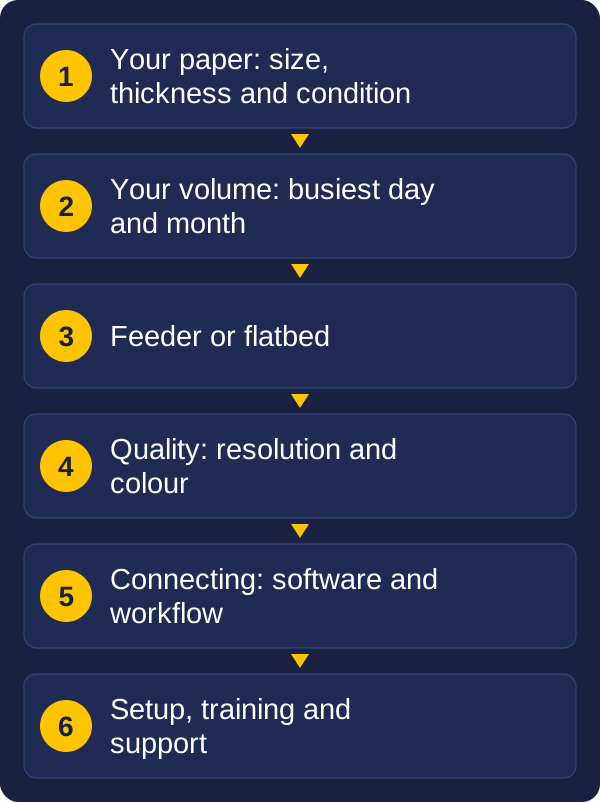
Read the guideThe best scanner is the one that suits your paper, your volume and what happens to the files afterwards. It is not always the fastest, and not always the cheapest. This guide covers the six things to weigh, explains the jargon in plain words, and ends with the questions that make the choice easy.
Key points
For example, a medical practice scanning A4 forms, receipts and plastic cards needs a different scanner from a council scanning A3 plans and bound registers.
Pages per day matters more than top speed. Scanner makers publish a recommended daily volume, often called the duty cycle. Choose a scanner rated comfortably above your busiest day, and leave room to grow. Running a scanner at its limit every day wears it out sooner.
Speed is quoted in pages per minute (ppm) or images per minute (ipm). A sheet printed on both sides gives two images, so a scanner rated 60 ppm and 120 ipm scans about 60 double-sided sheets a minute at best.
Real speed is lower once you add loading, sorting and checking. For example, 2,000 pages at 60 ppm is about half an hour of pure scanning, but preparing the paper and checking the results often takes longer than that. For a one-off backlog of thousands of pages, it can be cheaper to have the scanning done for you than to buy a scanner.
A feeder (automatic document feeder, or ADF) pulls a stack of sheets through the scanner. Its capacity is counted in sheets. A bigger feeder means less standing at the machine, because you can load a larger batch and walk away.
A flatbed has a glass bed like a photocopier. You lay the item on the glass, which suits books, fragile letters and odd-shaped items. Some scanners are feeders with an optional flatbed attachment, and a few have one built in.
If some of your paper cannot go through a feeder, plan for a flatbed from the start.
Resolution is measured in dots per inch (dpi), which is how much detail the scanner captures. For most office documents, and for turning pages into searchable text, 200 to 300 dpi is enough. Use higher settings for photos, fine print or anything you may enlarge.
Higher resolution means bigger files and slower scans, so more is not always better. Colour works the same way:
A missing page is the costliest scanning mistake, because nobody notices until the document is needed. Two features help:
Think about where the scans need to go, and who will scan.
For example, a team scanning mixed mail at one desk may only need a USB scanner and simple software. A team scanning at several desks needs a network connection and shared settings.
Large-format scanners handle drawings, maps and posters. The ones we supply range from about 24 to 60 inches wide. The main choices are:
The large-format scanner finder walks through these choices.
| Term | What it means | Example |
|---|---|---|
| ppm / ipm | Pages per minute, or images per minute. A double-sided sheet counts as two images. | 60 ppm and 120 ipm: about 60 double-sided sheets a minute |
| Duplex | Scans both sides of a page in one pass. | An invoice with terms on the back is captured in one go |
| Feeder (ADF) | Automatic document feeder that takes a stack of sheets. | A 100-sheet feeder holds a small stack of forms |
| Flatbed | A glass bed like a photocopier, for items that cannot be fed. | A bound register or a fragile letter |
| Duty cycle | The daily volume the maker recommends. | Rated for 5,000 pages a day, so 1,000 a day is comfortable |
| dpi | Dots per inch: how much detail is captured. | 300 dpi for text, higher for fine detail |
| Double-feed detection | Stops the scanner when two sheets feed together. | Prevents a page going missing without anyone noticing |
| OCR | Turns scanned pages into text you can search. | Finding one name across thousands of pages |
| TWAIN / ISIS | Standard drivers that let software control a scanner. | Your capture software lists which ones it supports |
| Large-format | Scanners for paper wider than A3. | Architectural drawings and maps |
The price of the scanner is only part of the cost.
Start with the biggest and most fragile paper you scan, then your busiest-day volume, whether you need colour, and where the files should go. Our scanner finder asks these questions and gives you a shortlist.
It is the daily volume the maker recommends for a scanner. A scanner rated for 5,000 pages a day is comfortable at 1,000 pages a day.
A feeder takes a stack of loose sheets quickly. A flatbed suits bound, fragile or unusual items that cannot be fed. Many offices use both.
Wear parts such as feed rollers and separation pads, capture software, setup and training, and support or warranty.
A scanner that is well chosen but badly set up still disappoints. The difference is what happens after the purchase. With Vision and Beyond, you get:
We do this because the aim is a scanning process that works for years, not a box delivered to your door.
These are the same kinds of questions our scanner finders ask. Answer them in a few minutes and you will have a shortlist. We help you choose, and we stay with you after the purchase.
Ready to start?
Prefer to talk it through? Send us a message with what you scan and we will talk through what is realistic.
Tell us what you scan, roughly how much, and what you need to do with the files. We will reply with a recommendation.