Preparing Your Documents for AI
How clean, searchable, well-labelled scans let AI work from your own records, and how we help you get there.
Read the guideDrawings, plans and maps are harder to digitise than ordinary documents. They are bigger than a standard scanner can take, they are often printed on fragile or unusual material, and the detail in them matters.
Key points
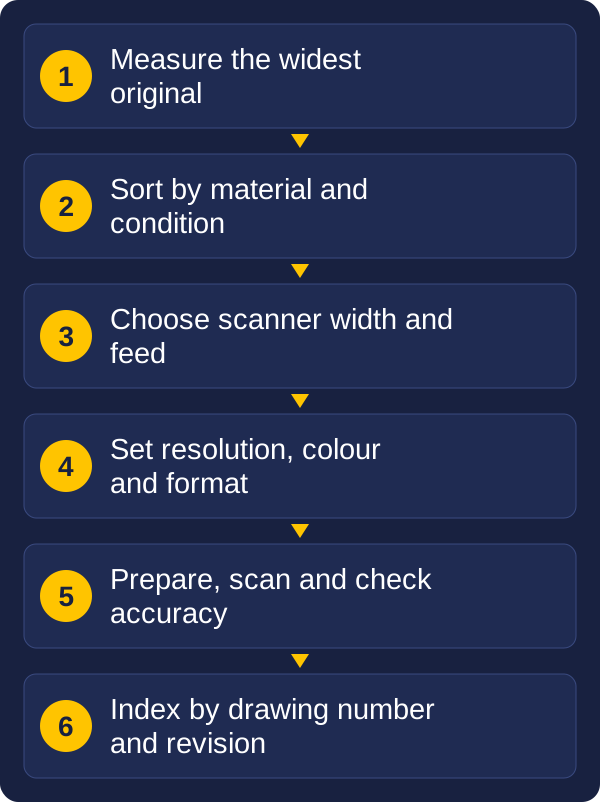
A line in the wrong place or a distorted scale can make a scan useless. This guide explains what to think about before you start, so you choose the right equipment, protect the originals and end up with scans people can trust and find.
Plan rooms and drawing cabinets cost space and time. The benefits of digitising them are practical:
For many organisations, drawings are some of their most valuable records. Buildings, roads, pipes, cables and land all depend on them, often for the whole life of the asset.
The equipment depends on what you have, so start by sorting the collection. Look at three things.
Size. Measure the widest original, not the typical one. A scanner that is too narrow for your widest drawing is the most common and most expensive mistake. Common drawing sizes run from A2 and A1 up to A0 and beyond, and maps and posters can be wider still.
Material. Not everything is paper. The material decides how it can be handled:
| Material | What to know |
|---|---|
| Plain paper | The easiest to scan. Check for folds, tears and brittleness |
| Tracing paper or vellum | Thin and translucent, and can curl or tear. It may need special handling |
| Film or polyester | Durable but slippery, and it can scratch |
| Linen-backed or heavy stock | Stiff, so it may not bend around a feed path |
| Blueprints and diazo prints | Faded or low contrast, and they often need image adjustment |
| Coloured maps and plans | Colour often carries meaning, so capture it |
Condition. Count how many are folded, rolled, torn, stained or mounted. Rolled drawings need flattening. Fragile items may need to go through a carrier sheet, or be scanned by hand rather than fed through.
A quick audit of sizes, materials and condition, with a sample of each, is the most useful thing you can do before choosing a scanner.
Large-format scanners are described by the widest original they take. The width of the paper is what counts. The length is usually less of a limit, though some models have one.
| Original | Short side | Scanner width needed |
|---|---|---|
| A1 | 594 mm | 24 inches (610 mm) or wider |
| A0 | 841 mm | 36 inches (914 mm) or wider |
| Wide maps and posters | Over 914 mm | 42 inches (1067 mm) or wider, up to 60 inches (1524 mm) |
Three other things affect the choice:
Our large-format scanner finder asks about the widest original and shows the smallest scanner that fits it. Our scanner buying guide explains the terms in plain English.
Width is only the first choice. The type of scanner decides what it can handle and what it needs around it.
| Type | Best for | Watch for |
|---|---|---|
| Sheet-fed, standard sensor | Everyday drawings and plans, fast and compact | Thickness limits of about 0.75 to 2 mm, depending on the model |
| Sheet-fed, camera sensor | Thick, mounted or textured originals up to 15 mm, and colour-accurate maps | Often needs a stand, and costs more |
| Flatbed | Fragile items, books and artwork that cannot be fed through | Up to 10 kg on the glass, and slower for large volumes |
| Contact-free, face-up | Paintings, textiles and very fragile originals | A large machine (187 kg), a floor area of at least 3.5 × 1.6 m and a high-spec PC |
| Portable | Site work and occasional use | Light at 5 to 7 kg, but limited to thin originals of about 0.5 mm |
| Multifunction | Scanning and copying in one | Some need a separate PC or printer |
Check what is included, too. Some models do not come with the PC, the printer or the stand, and some can scan straight to email, a USB drive or the cloud without a PC at all.
Resolution. Drawings are mostly fine lines, so they need more detail than a text document. A common range is 300 to 400 dpi, and drawings with very fine lines, small text or items you want to enlarge may need more. Higher resolution gives bigger files, so match it to the finest detail you need to keep.
Colour or black and white. Black and white keeps files small and suits most line drawings. Use colour for maps, coloured plans and any drawing where colour carries meaning, such as services, zones or revisions marked in red.
Accuracy. For drawings, the scale matters. A scan that is stretched or skewed can give wrong measurements. Ask about dimensional accuracy, and check a sample by comparing a known distance on the original with the scan.
File format. Choose the format by what the scan is for:
Many organisations keep a high-quality master file and a smaller copy for everyday viewing.
Scans of large drawings are big files, so storage is worth planning before you buy. These are rough estimates, because file size depends on the drawing and how it is compressed.
| Scan | Typical file size | 1,000 drawings |
|---|---|---|
| A1 or A0 line drawing, black and white | About 0.5 to 2 MB | About 1 to 2 GB |
| A1 or A0 plan or map, colour | About 10 to 40 MB | About 10 to 40 GB |
Higher resolution, and files saved without compression, can be many times larger. Plan for more than the scans themselves:
Don't forget physical space. The scanner needs a bench or stand with room for the paper to enter and leave, and larger machines need a dedicated floor area. Decide, too, what happens to the originals afterwards: kept in the plan room, moved to off-site storage, or securely destroyed once the scans are checked. Vision and Beyond can arrange off-site storage and destruction through our partners.
Good preparation protects the originals and saves rescanning.
Take particular care with anything fragile or irreplaceable. If in doubt, stop and get advice before you feed it through.
A scanned drawing that cannot be found is no better than one lost in a cabinet. Decide what information goes with each drawing before you begin. Typical index fields are:
Much of this information is already printed in the title block. It can often be read automatically and checked by a person, which is faster and more consistent than typing it in by hand.
Revisions need particular care. Decide how superseded drawings are handled, and make sure people can tell which version is current. Keeping every revision is often required, but the current one must be easy to identify.
A scan is a picture of the drawing. You can view it, search it by its index, print it and mark it up, but you cannot edit the lines the way you can in a design file.
If you need editable drawings, that is a separate job. The scan can be converted, or the drawing redrawn, but conversion takes more time and checking, especially for older or poor-quality originals. Decide early whether you need only a viewable copy, which is most common for records, or a drawing you can edit, which is a bigger project.
For most archives, the sensible first step is to scan everything to a good standard and index it. Convert to editable files only for the drawings that will actually be revised.
Some collections are too delicate or too unusual to scan in-house. Historic maps, brittle linen plans, mounted or very large items and one-of-a-kind originals often need specialist handling and equipment.
A common approach is to split the work. Scan the everyday drawings yourself, with a scanner suited to them, and use a specialist service for the awkward items and for a large one-off back-file. Vision and Beyond can also organise plan and drawing scanning for backlogs through our partners, from the awkward items to a full back-file, as well as supply equipment, and help you decide which mix suits your collection.
Whichever you choose, ask who will handle the originals, how they are transported and stored, and how security is managed.
A0 drawings are 841 mm on the short side, so you need a scanner that takes 36 inches (914 mm) or wider. A1 drawings need 24 inches (610 mm) or wider.
300 to 400 dpi is a common range. Very fine lines, small text or items you want to enlarge may need more.
No. A scan is a picture, so you can view, search, print and mark it up, but you cannot edit the lines. Converting to an editable file is a separate job.
As a rough guide, a black and white A1 or A0 line drawing is about 0.5 to 2 MB, and a colour plan or map is about 10 to 40 MB. A thousand drawings is roughly 1 to 2 GB in black and white, or 10 to 40 GB in colour. Allow for master and viewing copies, backups and growth.
Often yes, but they may need carrier sheets or specialist handling. Vision and Beyond can organise scanning of backlogs and awkward items through its partners.
You do not need a final answer on everything. A good first step is to gather five facts:
Vision and Beyond supplies large-format scanners and helps organisations set up capture, indexing and records management. We can also organise scanning of your backlog of plans and drawings through our partners, and we stay involved after the work is done. If you would like to talk through your drawings, send us a message with the sizes, materials and rough numbers.
These tools and guides may also help:
Tell us what you scan, roughly how much, and what you need to do with the files. We will reply with a recommendation.