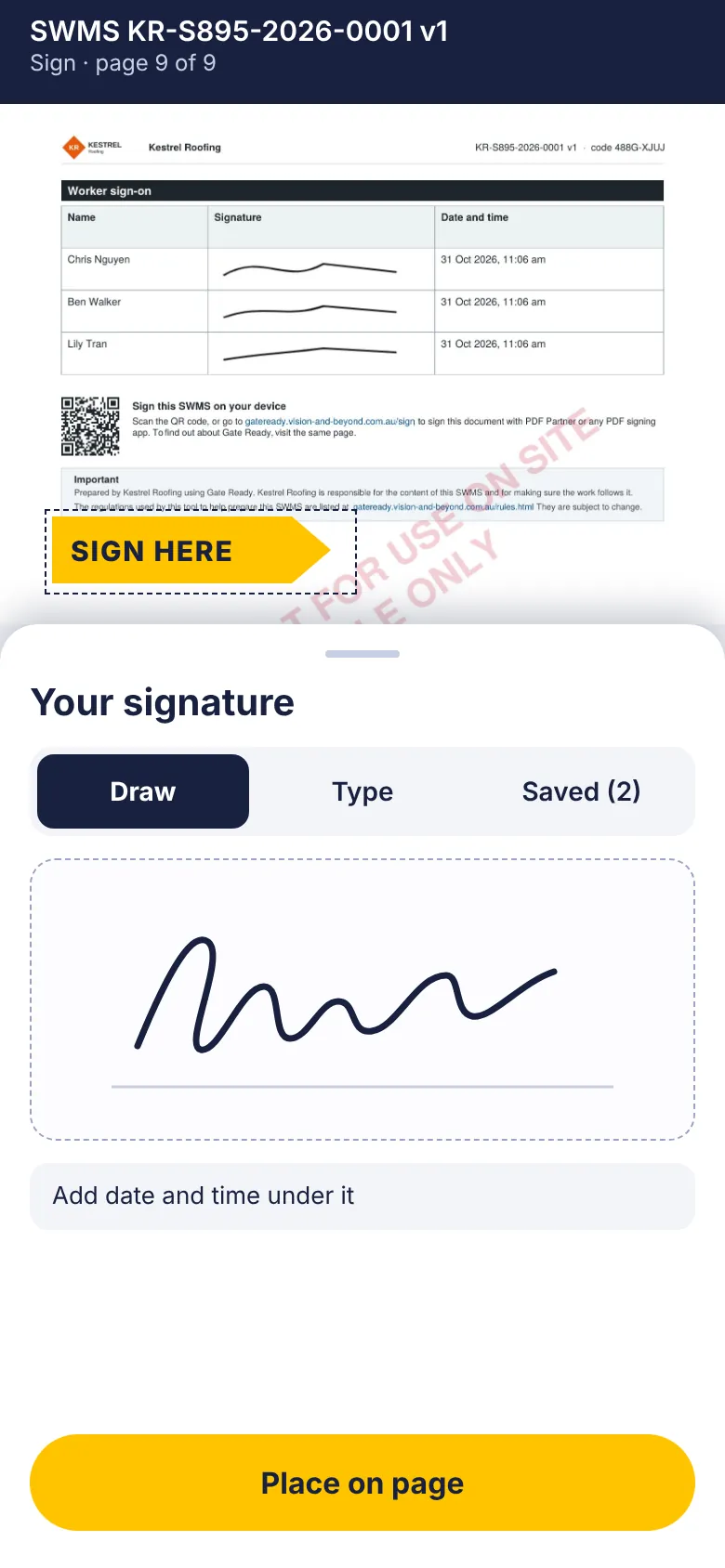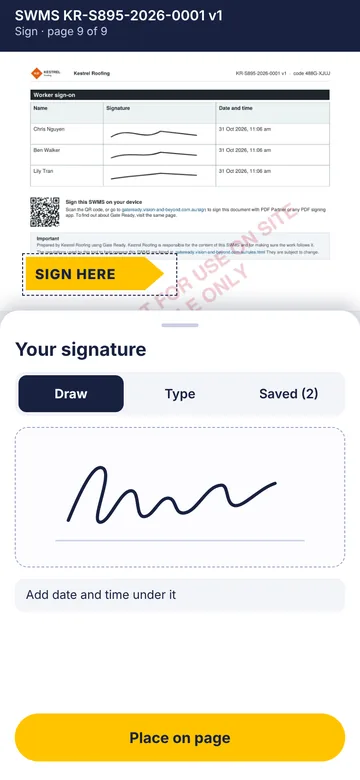
Sign in seconds
Draw it, type it, or save it once and reuse it.
 PDF Partner
Read, fill, sign, mark up, sort pages and scan paper. Every feature is free, with no account to create.


Coming soon to the App Store and Google Play
Every feature is free. No ads while you work. Your first 3 saves or shares are free, then top up by watching a short ad, or pay once to remove ads for good.

Wondering how it compares with Acrobat and other paid apps? See the comparison
Draw it, type it, or save it once and reuse it.
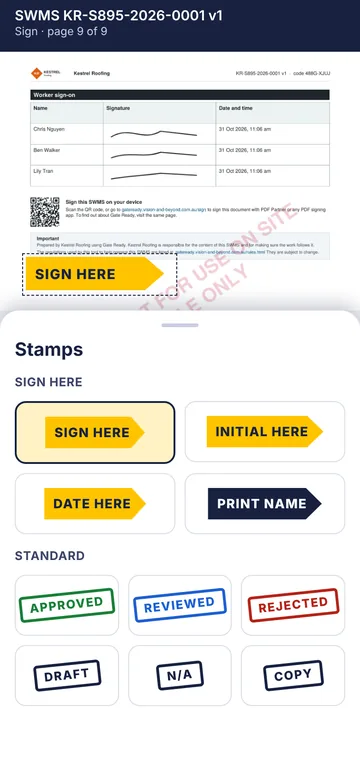
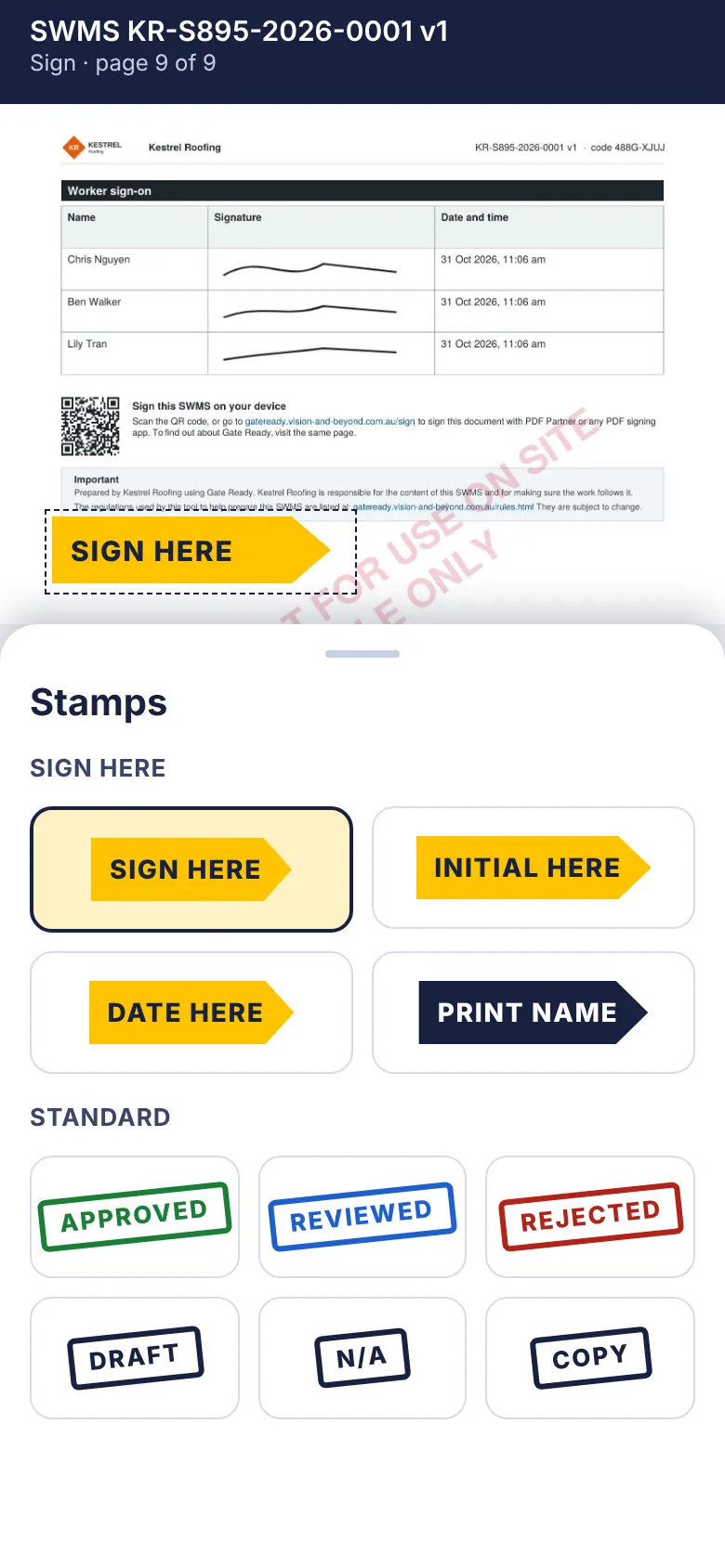
Show exactly where someone needs to sign or initial. There are stamps for approved, reviewed and dates too.
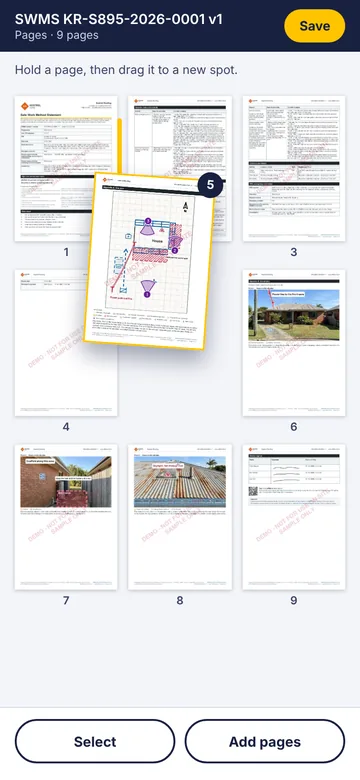
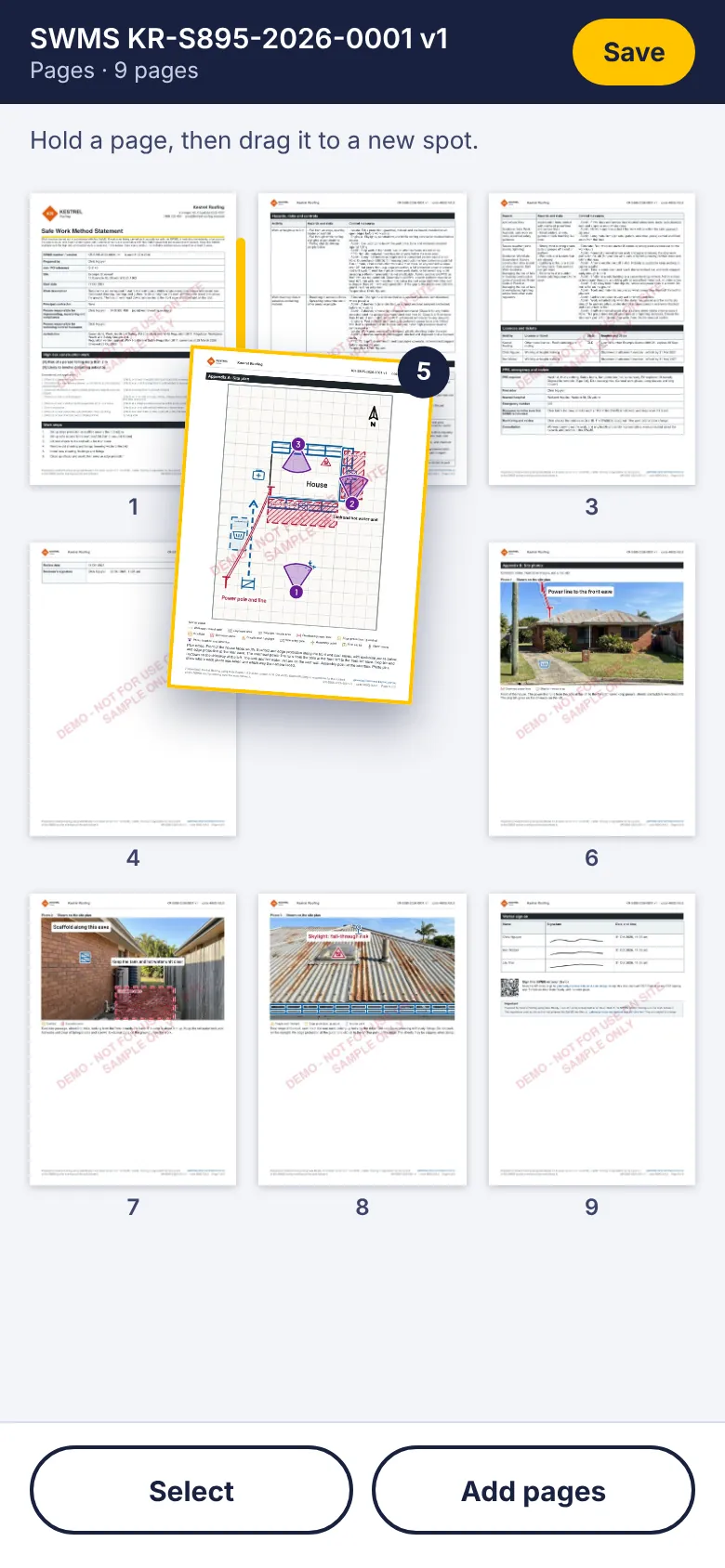
Hold a page and drag it where it belongs.
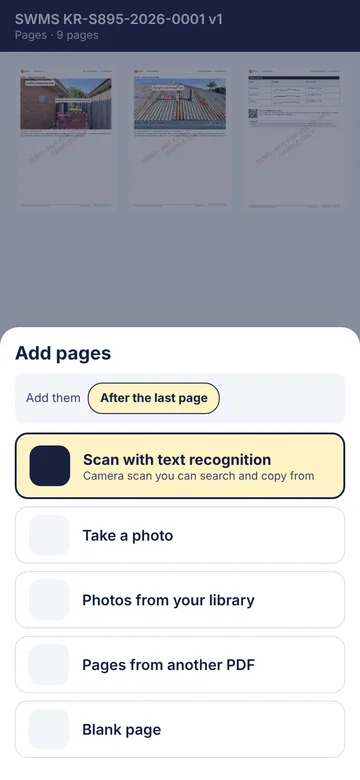
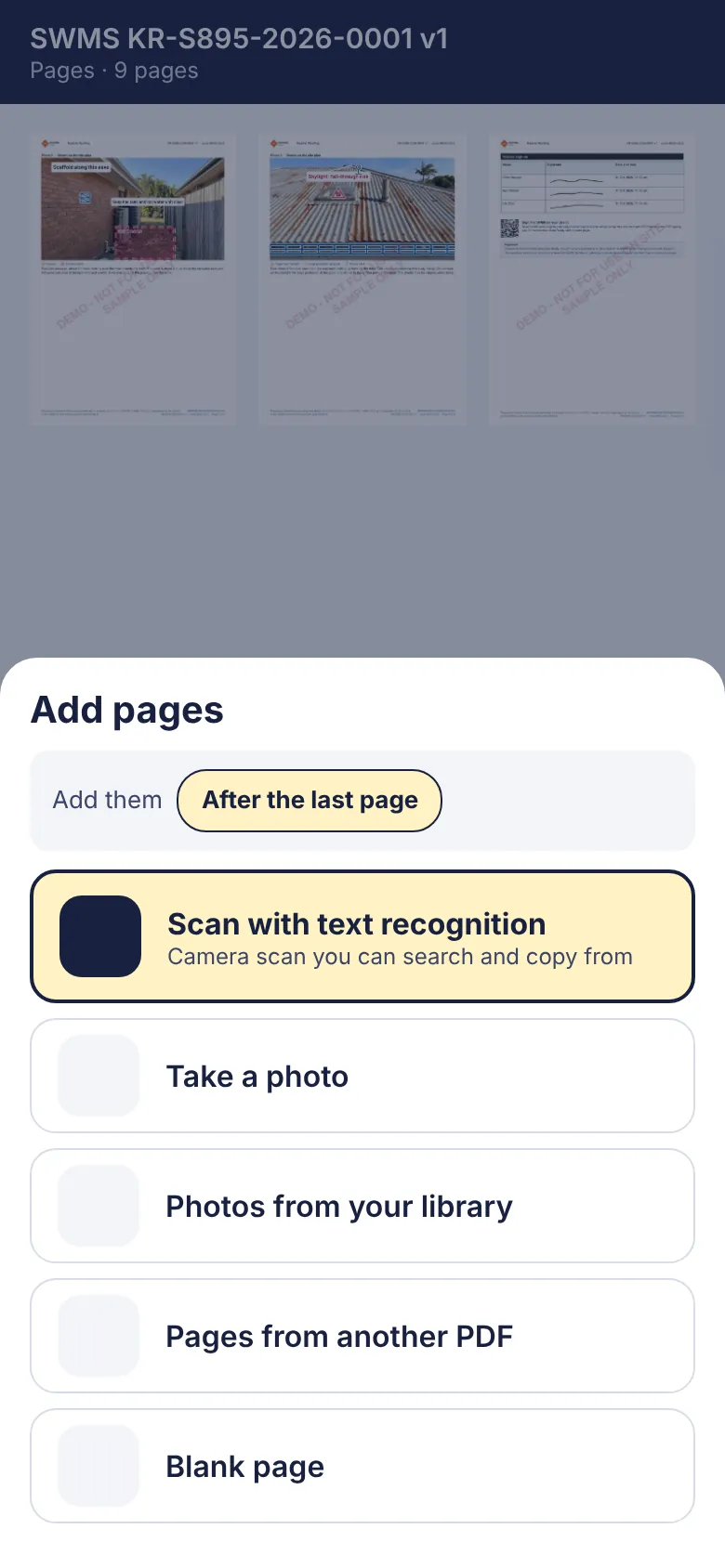
Photograph a page and it is straightened and read, so you can search and copy from it, even offline.
Screens are previews and may differ slightly from the released app.
All of this is in the app today, and every feature is free to use.
Everything in PDF Partner is free to use, with no ads while you read, fill, sign or mark up.
You start with 3 free saves or shares. When you run low, watch a short ad to add 3 more. Unused ones carry over, up to 15.
Prefer no ads at all? Pay once and they are gone for good.
Purchases are handled by the App Store or Google Play. Read the terms of use
Wondering how that compares with paid apps? See how PDF Partner compares on price and features
Yes. Every feature is free to use, with no ads while you read, fill, sign or mark up. Your first 3 saves or shares are free. When you run low, watch a short ad to add 3 more. You can hold up to 15 at a time. Pay once and the ads are gone for good.
Saving a file, or sharing it from the app. Reading, filling, signing and marking up do not use any.
Yes. They stay until you use them, up to 15.
No. There is nothing to sign up for.
No. PDF Partner does not send your documents to us or to any server of ours. If you share a file, or save it to a cloud service, that service handles it.
iPhone and Android phones. It needs iOS 17 or later, or Android 10 or later.
Pages you scan with PDF Partner are made searchable. A PDF that was scanned elsewhere may have no text to search, and the app tells you so.
Email support@vision-and-beyond.com.au with your phone model and what happened. In the app, the Contact support button adds the details we need.
PDF/A is a version of PDF made for keeping documents for many years. An ordinary PDF can depend on fonts or features on the device that made it, so years later it may look different, or stop working. A PDF/A file carries what it needs inside it: the fonts are in the file, the colours are defined, and things that can stop working, such as scripts and attachments, are left out. That is why it is the usual choice for records that must be kept long term. Our guide, What is the difference between PDF and PDF/A?, explains more.
They are two levels of PDF/A-2. PDF/A-2b keeps every page looking the same in the future. PDF/A-2u does that too, and also needs the text to be real text, so the file can still be searched and copied from. Choose 2u for a PDF that has text, including scans read with text recognition. If the text has no real letters, PDF Partner greys 2u out and tells you why.
Open the file, choose Save as, then More options, then Type of PDF, and pick PDF/A-2b or PDF/A-2u. PDF Partner lists what will change before it saves, and adds “(PDF-A)” to the file name. A PDF/A copy is a new file, so the one you have open stays as it is. In the copy, form answers become part of the page and can’t be edited any more, and a password can’t be kept. If a file can’t be made into PDF/A, the app tells you and saves nothing.
Yes. On the Files screen, Check PDF/A looks at any PDF and shows a report: whether it says it is PDF/A, whether the fonts are inside, whether it has a colour profile, and whether it has a password, scripts or attachments. If something can be fixed, Fix what can be fixed opens Save as with PDF/A chosen. It is a quick check of the main rules, not a full validator. If your records must meet a standard, confirm the file with a validator such as veraPDF.
In Scan, choose “What is this scan for?” and pick Archive. You can set the resolution (300 or 400 ppi, which means pixels per inch and is how much detail each page holds), colour, greyscale or black and white, lossless or high-quality JPEG, and the paper size. PDF Partner saves a PDF/A copy for keeping and, if you leave it on, a smaller copy for everyday use, together in one folder. Keeping one full-quality copy and one small copy is common archive practice. Our guide, What are master and access copies?, explains why.
Standard PDF forms. You can fill text boxes, tick boxes, radio buttons, drop-down lists and list boxes, step through the fields with Next, and see a list of every field with the empty and required ones marked. Forms that add up totals, or format numbers, percentages and dates as you type, work too. XFA forms and forms with custom scripts are not supported. Your answers stay editable unless you save a Final copy.
A Final copy locks your marks and form answers into the page, so they can’t be moved, edited or deleted in any app. Use it when you are sending a file that should not change. If you might need to change things later, keep an editable copy as well. You will find it under Save as, then More options, and it only appears when the PDF has form fields or marks.
A picture of your signature, placed on the page, like signing on paper. You can draw it, or use a photo or image of it. It is not a certificate-based digital signature, which also proves who signed and that the file has not changed since. Whether a picture signature is accepted depends on who you are giving it to, so check with them if you are unsure.
Yes to both. To open a PDF that has a password, type the password when asked. PDF Partner does not keep it after you close the file. To protect a file, choose Save as, then More options, then Password, and use at least 6 characters. The file is protected with AES-256. You can change or remove a password the same way. If a password is forgotten, PDF Partner can’t recover it. PDFs locked with a certificate can’t be opened, and PDF/A copies can’t have a password.
Choose Save as, then More options, then File size, and pick Smaller or Smallest. PDF Partner saves the pictures in the PDF again at a smaller size and leaves the text and drawings exactly as they are. It is offered when the file has enough pictures to make a real saving. Smallest is fine for reading, but photos lose some detail. The smaller file is a copy, so your open file stays the same.
Yes. Highlights, drawings, shapes and stamps are saved as real PDF annotations, so other PDF apps show them and can usually move or edit them. PDF Partner can also edit highlights, drawings and shapes made in other apps. If you want the marks fixed in place, save a Final copy.
Yes. In Pages, press and hold a page, then drag it where it belongs. You can also rotate or delete pages, and extract the ones you choose into a new PDF. Use the + button to add pages from another PDF, photos, the camera, a scan or a blank page, and put them exactly where you want them.
Email support@vision-and-beyond.com.au with your phone model and what happened. We will reply by email.
Email support