Catch every screenshot
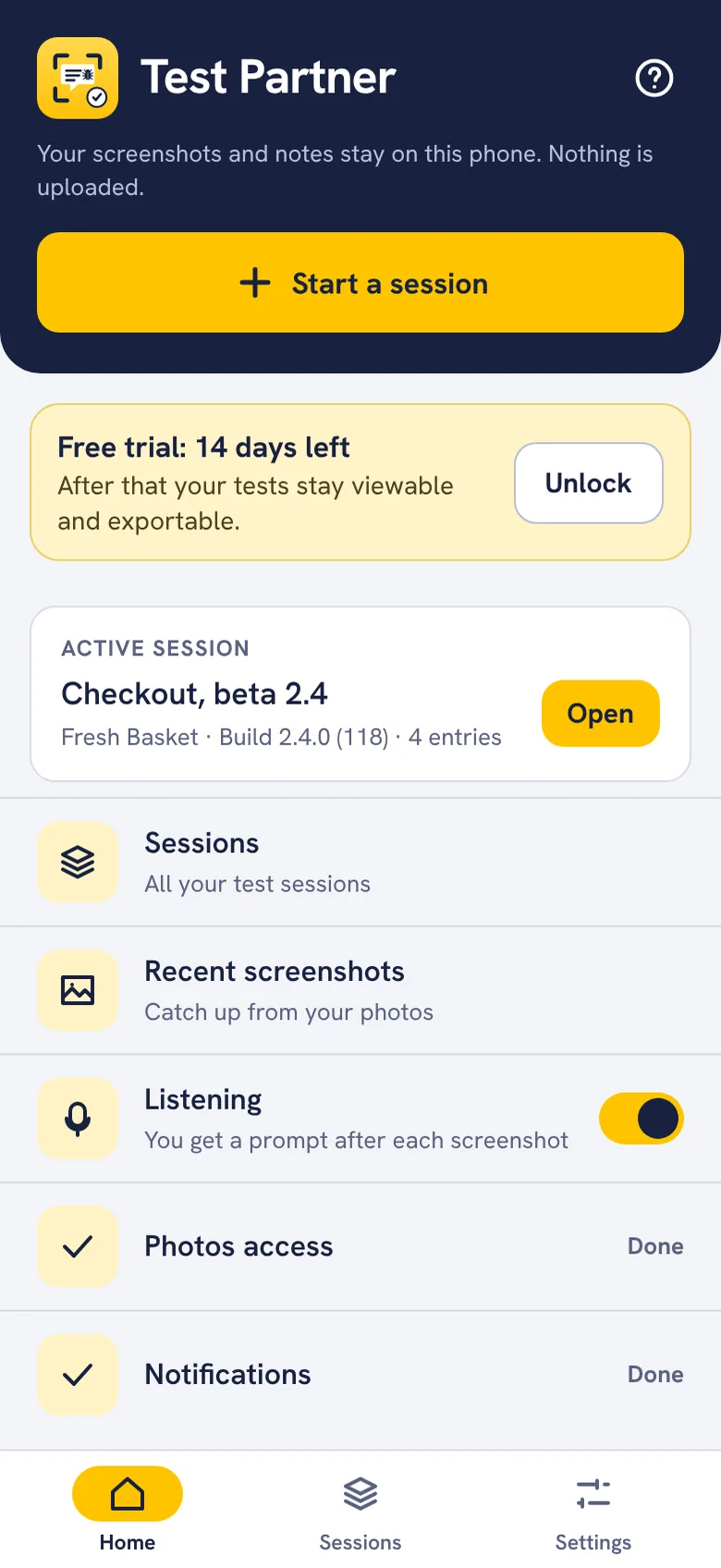
On Android, turn on Listening and save each screenshot with a note as you test. On iPhone, share it to Test Partner straight from the screenshot preview.
 Test Partner
Take a screenshot while you test, add a note, mark it Bug, Improvement or Question, and draw on it. When you are done, send the developers a Word report they can reply in. For iPhone and Android.


Now on Google Play. Coming soon to the App Store.
Free for 14 days. Try every feature, with no account and no card. After that, one purchase keeps it going, with no subscription. Every test you made stays yours to open and export.

On Android, turn on Listening and save each screenshot with a note as you test. On iPhone, share it to Test Partner straight from the screenshot preview.
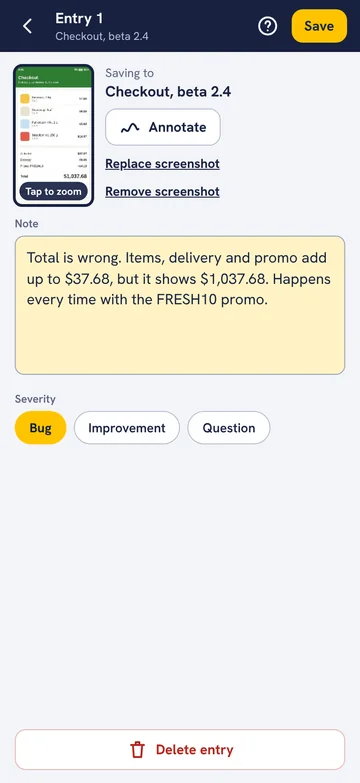
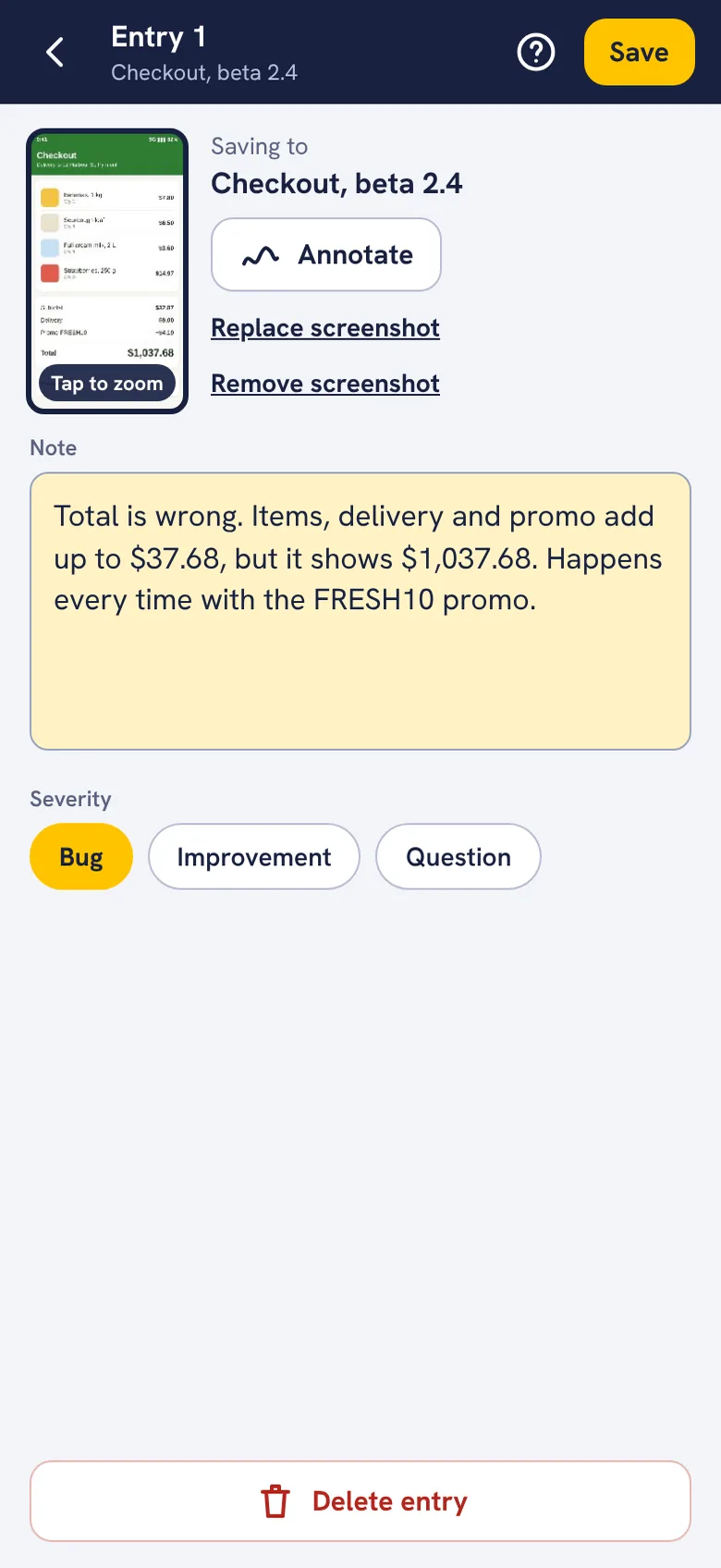
Write a note and mark it Bug, Improvement or Question, so the developers know what to fix first.
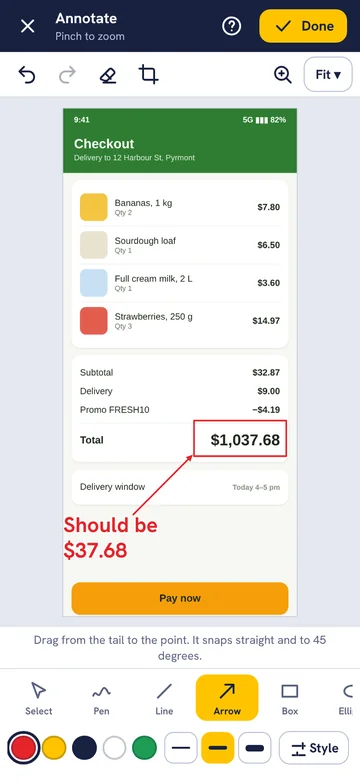
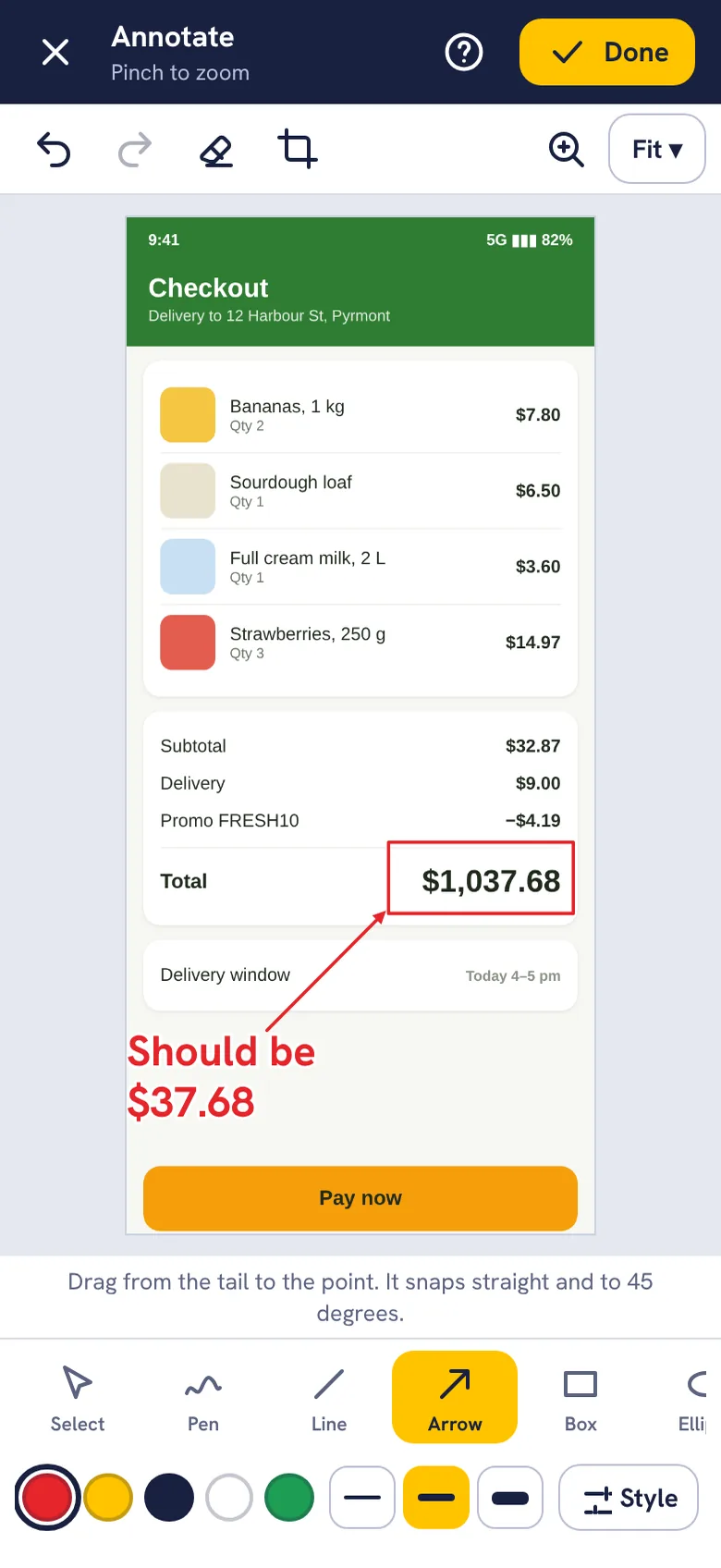
Draw arrows, boxes, circles and text right on the screenshot. Pinch to zoom in for fine detail.
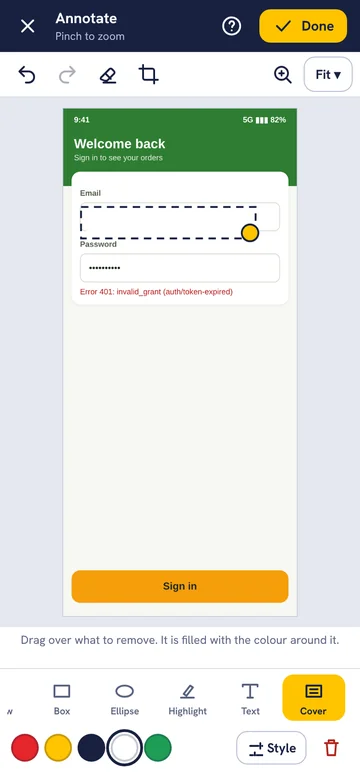
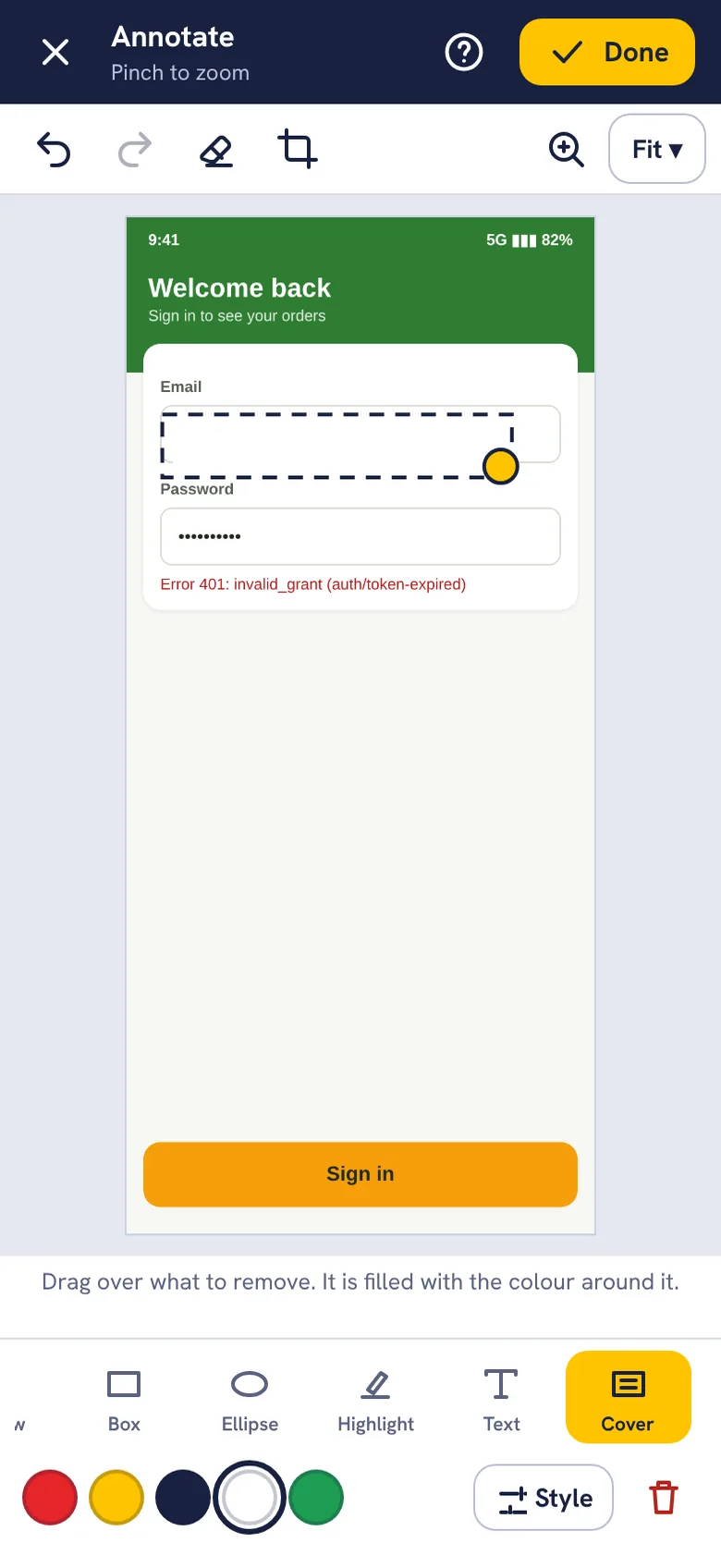
Drag Cover over a name, email address or card number. It fills with the colour around it, so the report stays tidy.
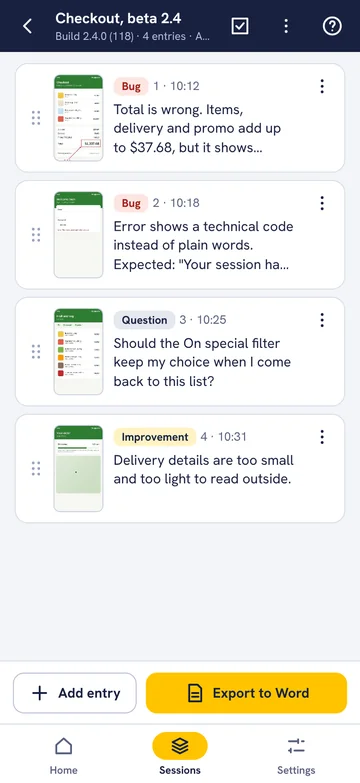
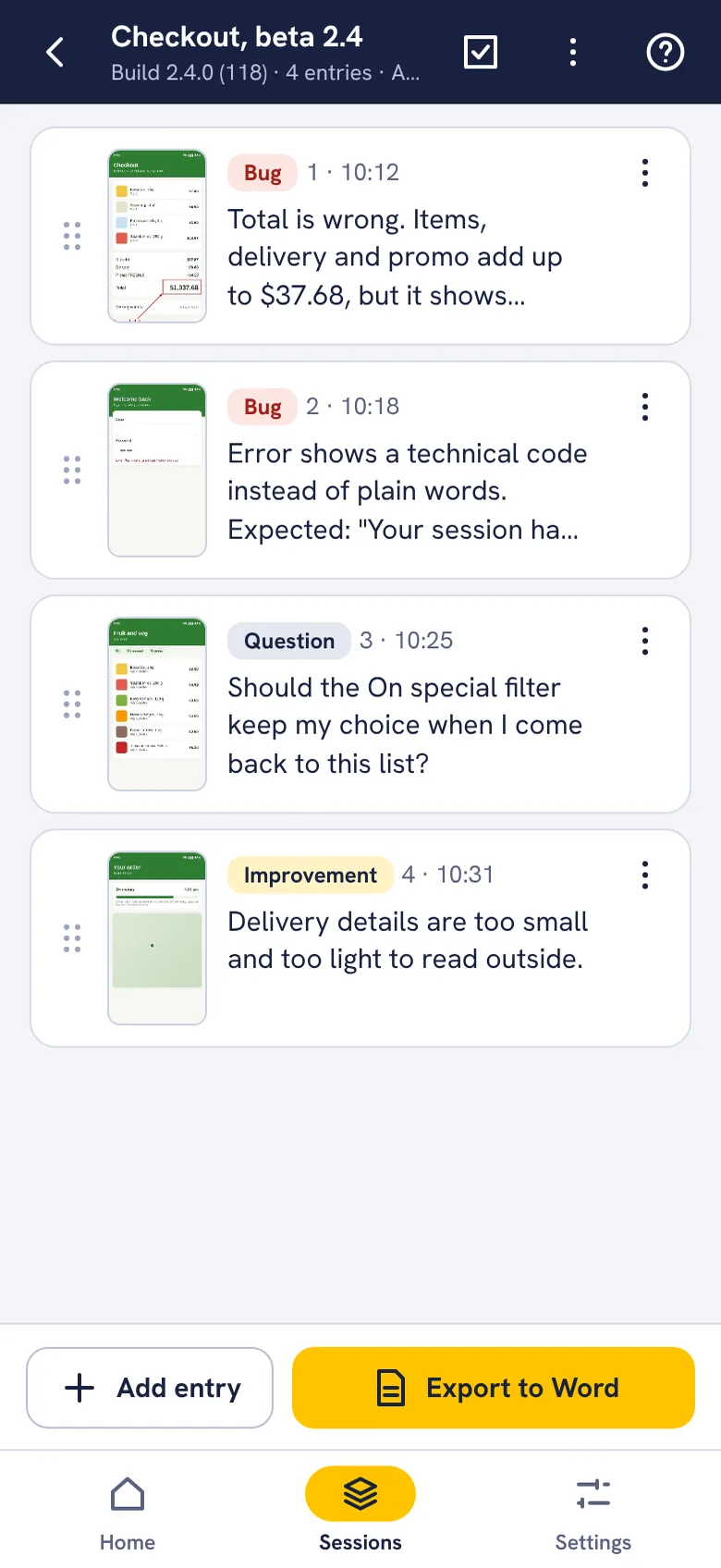
A session holds one round of testing for one build. Drag entries into order, or move them to another session.
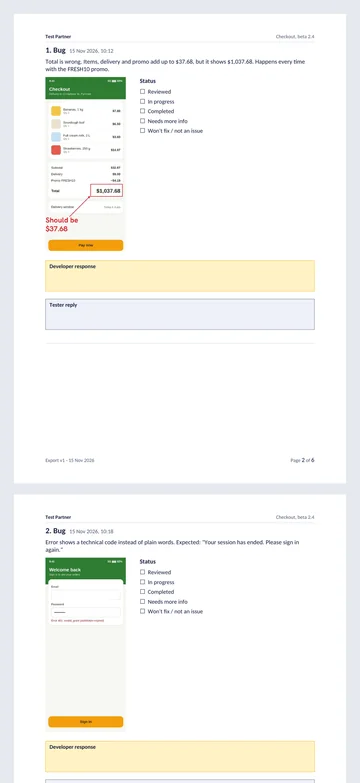
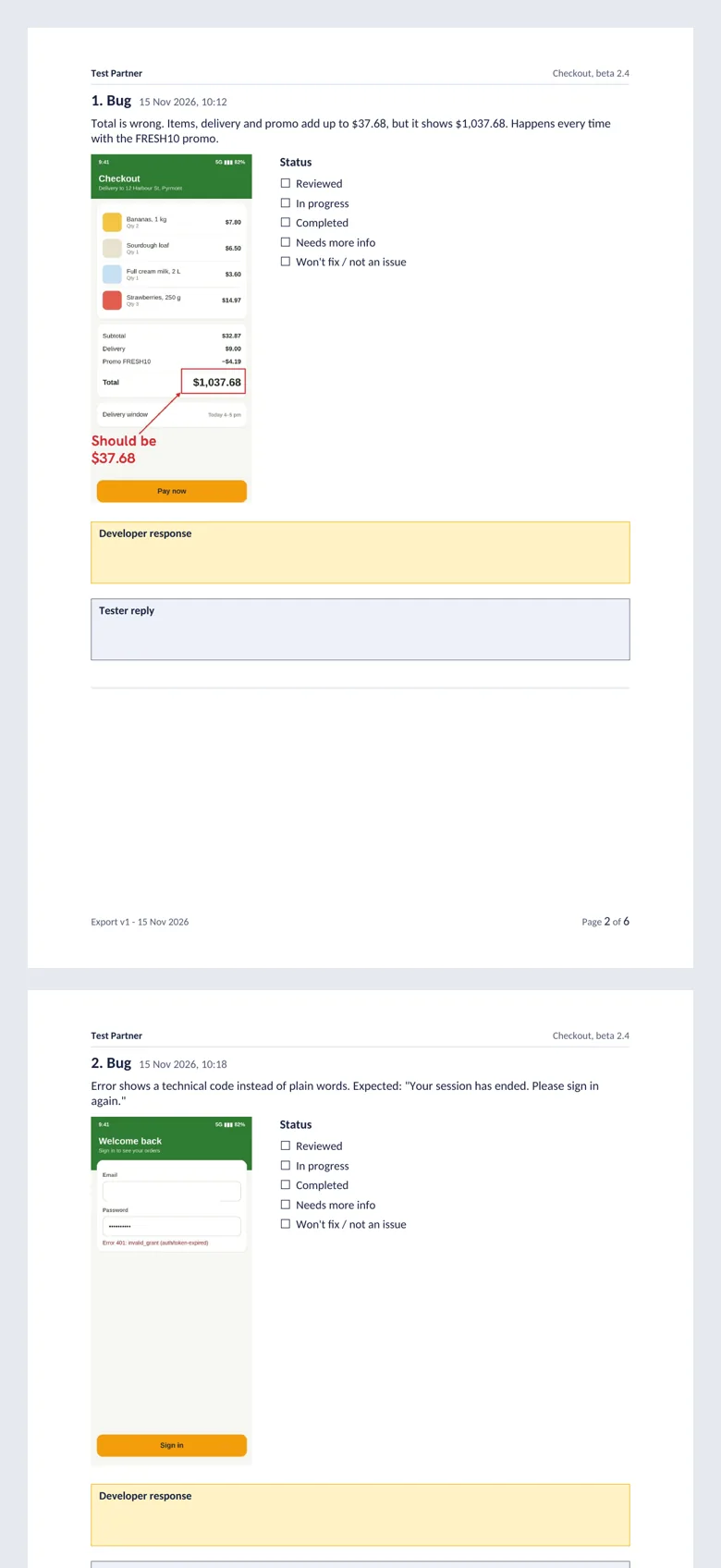
Export a Word document with a page for each screenshot, status ticks, and boxes for the developer to reply in.
Screens are previews and may differ slightly from the released app. Fresh Basket is a made-up app used for the examples.
All of this is in the app, and all of it is yours to use during the free trial.
Test Partner is free for 14 days, with every feature. The trial starts when you start your first session.
After that, a one-time purchase lets you keep adding and changing tests. There is no subscription.
If you do not buy it, nothing is lost. You can still open, view and export every test you made, and delete things.
The purchase is tied to your App Store or Google Play account, so you can restore it on another phone with the same account.
Purchases are handled by the App Store or Google Play. Read the terms of use
It is free for 14 days, with every feature. The trial starts when you start your first session. After that, a one-time purchase lets you keep adding and changing tests. There is no subscription.
Everything you made stays yours. You can still open, view and export every test, and delete things. Adding or changing anything, such as new sessions, new screenshots, marking up or editing notes, needs the one-time unlock.
No. There is nothing to sign up for.
No. Your screenshots and notes stay on your phone, and Test Partner does not send them to us. A report leaves your phone only when you export it and choose where to share it.
iPhone with iOS 17 or later, and Android phones.
No. A purchase is tied to your App Store or Google Play account. You can restore it on another phone that uses the same account, but it does not move between iPhone and Android.
Email support@vision-and-beyond.com.au with your phone model and what happened. In the app, Settings, Send feedback adds the details we need.
Take a screenshot, tap the preview in the corner, tap Share, then choose Test Partner. You can also catch up on screenshots you took earlier with Recent screenshots on Home, or add them from Photos.
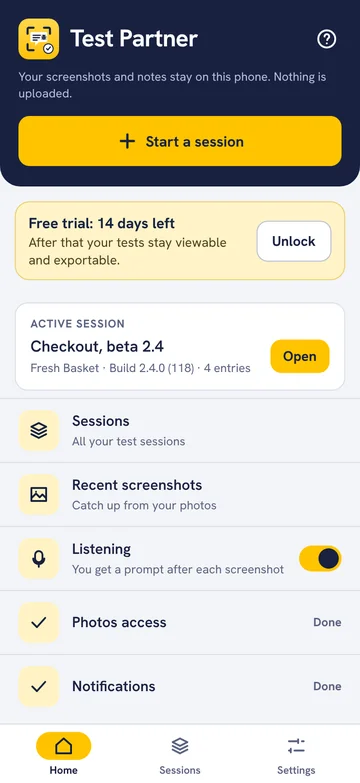
Turn on Listening on Home. After each screenshot you get a prompt to save it with a note, straight into your active session. While Listening is on, a notification shows that it is running. Turn it off on Home when you are done.
Yes. Each page has status ticks, such as In progress, Completed and Needs more info, and boxes for the developer’s response and your reply. They fill it in using Word and send it back. You can switch these off when you export.
Yes. Use Cover to hide a name, email address or card number, or crop the screenshot. Look over the report before you send it. Test Partner keeps the original screenshot on your phone, so you can go back to it.
Anything you can take a screenshot of on your phone: your own apps, a client’s app, or a website in your browser.
Yes. Start a new session for each round of testing. Each session keeps its own app name, build and entries, and has its own exports.
The report is a Word document (.docx). It opens in Microsoft Word, Pages, Google Docs and most office apps.
Email support@vision-and-beyond.com.au with your phone model and what happened. We will reply by email.
Email support